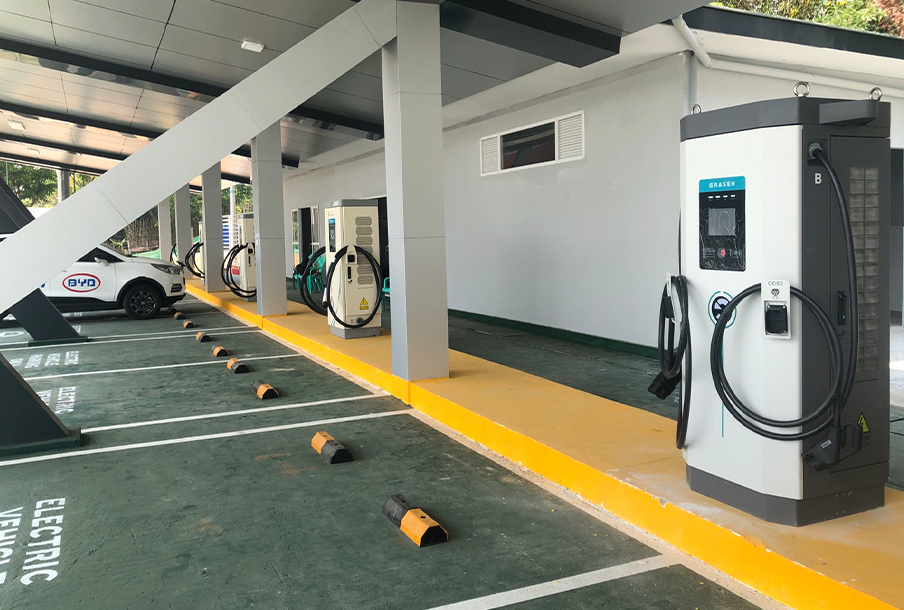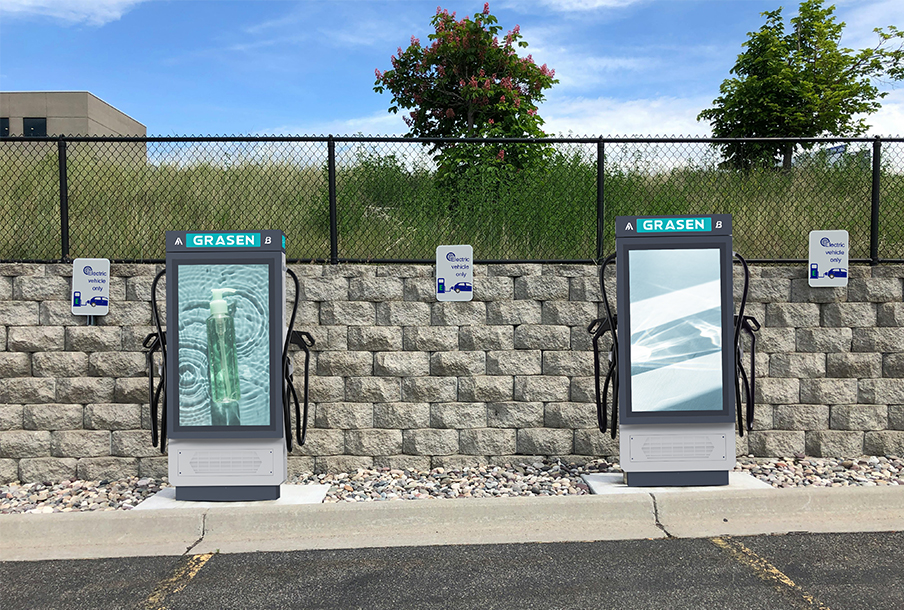



Using a Grasen charging station for the first time?
Quick answer: Open the Grasen App → find an available charger → scan the QR code or select the charger → start charging → monitor the session → recharge your account or complete payment using the available payment options → check your charging and payment records.
Here is the full process.
Step 1: Download and Log In
Search “GRASEN” in Google Play or the App Store and install the app.
When you open it:
1. Select the charging operator.
2. Enter your mobile number or email.
3. Enter the verification code.
4. Log in.
The app also supports multiple languages for users in different markets.

Step 2: Find a Charging Station
Open the map after logging in.
You can search for nearby chargers and filter them by:
· connector type;
· availability;
· charging power.
This lets you check whether a suitable charging point is available before you arrive.

Step 3: Check Status, Power and Price
Tap a charging station to view its details.
The app can show:
· station name;
· distance;
· charging-point status;
· rated charging power;
· electricity price;
· service fee.

Step 4: Start Charging
There are two ways to begin a charging session.
Option 1: Scan the QR Code
Tap the scan icon in the app and scan the QR code on the charger.
Option 2: Select the Charger in the App
Open the station details, choose an available charging point and tap Start Charging.
The app may then ask you to select your expected charging time. Confirm the settings to start the session.

Step 5: Check Charging Status
While the vehicle is charging, the app displays real-time information including:
· voltage;
· current;
· charging power;
· SOC;
· energy delivered
· charging cost
You can also stop the charging session from the app when needed.

Step 6: How to Recharge and Pay
How do I add money to my account?
Open your account page and follow these steps:
1. Tap Recharge.
2. Choose the recharge amount.
3. Select an available payment method.
4. Complete the payment.
Available payment methods may include PayPal and credit card and may vary by charging operator and market. Follow the payment options shown in your app.
After a recharge is completed, you can check the transaction under Payment History.

(Payment methods and currency shown in the app may vary by charging operator and market.)
Account → Recharge → Amount → Payment Method
Step 7: Check Your Charging and Payment Records
After charging, open your account page to review previous activity.
Charging History
You can check:
· charging station;
· energy delivered;
· charging cost;
· start time;
· end time.
Payment History
You can review previous recharge and payment transactions.

Extra Features
RFID Card
The app supports RFID card binding, and multiple cards can be added to one account.

Charger Reservation
Where supported, users can select a charging point, choose an available time slot and reserve it in advance.

Need Help?
If you have trouble using the app, open Contact Us to find the support information provided by the charging operator.
Explore Grasen EV Charging Solutions
For commercial charging projects: Grasen can also support charging operators, distributors and project developers with charging hardware, software functions and payment solutions.
Planning a commercial EV charging project? Send us your charger, connector, payment and software requirements, and our team can help review a suitable configuration.
Email: [email protected]
Website: www.grasen.com
WhatsApp: +86 199 3989 0561